Essential Kotlin Multiplatform Plugins: Setup Guide and Best Practices
Table of Contents
- Why Most KMP Projects Carry Three Times the Plugins They Actually Need
- The Three Plugins Every Production KMP Project Requires
- Productivity Plugins That Earn Their Place
- The Plugin Decision Matrix
- Five Mistakes That Silently Break KMP Plugin Configurations
- Structuring Your Gradle Files
- Verifying Your KMP Plugin Setup Before You Write Application Code
- Plugin Questions That Trap Developers Mid-Setup
Three hours into your first KMP project, the build.gradle.kts file looks like a foreign dialect. Dependencies aren't resolving. Android Studio is showing red squiggles in source sets you didn't know existed. Some Stack Overflow answer told you to add five plugins; another said you only need two. Which is right?
The honest situation: the kotlin multiplatform plugin ecosystem isn't actually bigger than other Gradle setups — it's just less documented for what's essential versus what's optional scaffolding. The Gradle Plugin Portal hosts over 100,000 plugin versions, and a meaningful fraction claim KMP relevance. Most of them you'll never need.
This article delivers four things: the three non-negotiables every KMP project requires, the productivity tier worth adding when you ship to stores, the configuration patterns that won't bite you in month three, and a verification checklist you run before writing application code.

Why Most KMP Projects Carry Three Times the Plugins They Actually Need
Most developers approach kotlin multiplatform plugin setup by copy-pasting from sample repos. JetBrains' own compose-multiplatform-template is a reasonable baseline. But the moment teams clone a more ambitious starter — one that includes Koin, SQLDelight, Firebase, RevenueCat, and three Ktor engines wired up on day one — they inherit configuration weight they don't yet need. Cargo-culting plugins from a working sample feels safe. It isn't.
The build cost is measurable. A 2022 empirical study of Gradle builds found that configuration time accounts for 10–40% of total build time, and that overhead scales with the number and complexity of applied plugins. For a KMP project compiling to Android plus multiple iOS targets, this multiplies because each target reconfigures. A 90-second ./gradlew build on a clean Mac M2 — with no actual compilation work to do — is almost always a configuration-phase problem.
Throughout this article, plugins fall into three categories:
- Foundational plugins — without these, KMP doesn't function. The kotlin multiplatform plugin and the Android Gradle Plugin live here.
- Capability plugins — unlock a class of functionality. Compose Multiplatform and
kotlinx-serializationare the obvious examples. - Productivity plugins — replace something you could write yourself but shouldn't. SQLDelight, Koin, and Ktor are the canonical entries.
Kevin Galligan of Touchlab puts the discipline plainly: "Most teams should start with a simple KMP setup: one shared module and a couple of plugins. If you add every plugin you've ever heard of on day one, you're going to have a bad time with build performance and debugging." — Source: Touchlab, Droidcon NYC 2022.
Three concrete symptoms tell you the project is plugin-bloated:
- Symptom 1:
./gradlew buildtakes >90 seconds on a clean Mac M2 with no compilation work to do. Configuration phase is the culprit. - Symptom 2: Errors reference plugins you didn't knowingly add. A meta-plugin (or "starter kit") pulled them in transitively.
- Symptom 3: Version bumps trigger cascading compatibility failures because four plugins each pin a different Kotlin version.
A plugin that saves 30 minutes at setup but adds 5 minutes to every build is a net loss for a project that will compile thousands of times.
The rule the rest of this article enforces: every plugin must justify its place in the build by replacing more work than it adds. According to the JetBrains State of Developer Ecosystem 2023, roughly 18–20% of Kotlin developers now use KMP for shared business logic. That share is growing, but it also means best practices are still being established. Treating a random GitHub project as authoritative is risky. Treat plugin selection as a deliberate design decision instead.
The Three Plugins Every Production KMP Project Requires
There are exactly three plugins required for a KMP project sharing UI code. Skip any of them and the project either won't compile or will silently lose multiplatform behavior.
| Plugin ID | Role | Required For | Source |
|---|---|---|---|
org.jetbrains.kotlin.multiplatform | Enables multiplatform targets | Every KMP project | kotlinlang.org |
com.android.application / library | Android Gradle Plugin | Any Android-targeting project | Android Developers |
org.jetbrains.compose | Compose Multiplatform UI compilation | Projects sharing UI | Compose MP |
org.jetbrains.kotlin.multiplatform is the glue. It exposes the kotlin {} DSL where you declare targets (androidTarget(), iosX64(), iosArm64(), iosSimulatorArm64()), source sets (commonMain, androidMain, iosMain), and the dependency hierarchy. Without it, you have a Kotlin project — not a Kotlin Multiplatform project. The DSL is what gives KMP its identity, and it's the only entry point to the target/source-set graph.
com.android.application (or the com.android.library variant for the shared module) is often missed by devs new to KMP, who assume the multiplatform plugin "covers" Android. It doesn't. The official Android docs are explicit: KMP does not replace AGP — you apply both. The kotlin multiplatform plugin defers Android-specific build steps (manifest merging, resource compilation, dex/R8) to AGP entirely. Skip AGP and androidTarget() will fail with "Plugin with id 'com.android.library' not found."
org.jetbrains.compose is technically optional. You can build a KMP project that only shares business logic and uses SwiftUI on iOS plus Jetpack Compose on Android, calling into the shared module from both sides. But for any team aiming at the full KMP value proposition — sharing UI too — Compose Multiplatform is the path JetBrains officially supports, and it pairs cleanly with a production-ready design system for consistent components across platforms. John O'Reilly framed it this way at KotlinConf 2023: "Compose Multiplatform lets you share not just business logic but the entire UI layer across Android, iOS, desktop, and web, while still integrating with native navigation and platform APIs where needed." — Source: KotlinConf 2023.
One honorable mention: org.jetbrains.kotlin.plugin.serialization. It isn't strictly required for KMP to function, but any project consuming a REST or GraphQL API needs it, and it's the only multiplatform-safe serialization library officially maintained by JetBrains. Treat it as a fourth near-mandatory plugin for ~95% of real apps — Source: Kotlinx Serialization Guide.
These three plugins form the skeleton of every production KMP app. Everything else is scaffolding.
Productivity Plugins That Earn Their Place
These aren't required. But for a production app shipping to App Store and Play Store, you'll add some subset of them. The question is which, not whether.
Koin — replaces manual dependency wiring
- Coordinate:
io.insert-koin:koin-core(library only — no Gradle plugin needed) - Add it when: Your project has 3+ screens, or you want testable, decoupled architecture across
commonMain. - Skip it when: Single-screen MVP, or you're keeping DI Android-only with Hilt (which does not support iOS targets).
- Setup time: ~20 minutes. Build impact: minimal.
- Source: Koin Multiplatform docs
Ktor Client — replaces OkHttp + URLSession + manual serialization plumbing
- Coordinate:
io.ktor:ktor-client-coreplus engine deps (ktor-client-okhttpfor Android,ktor-client-darwinfor iOS) - Add it when: You're calling any REST or GraphQL backend. Pairs naturally with
kotlinx-serialization. - Skip it when: You're only using Firebase SDKs (which include their own network layer).
- Setup time: ~30 minutes. Build impact: minimal.
- Source: Ktor Multiplatform Client Docs
SQLDelight — replaces raw SQLite plus manual row mapping
- Coordinate:
app.cash.sqldelight(Gradle plugin) plus drivers (android-driver,native-driver) - Add it when: You need offline-first behavior or local caching across both platforms with type-safe SQL queries.
- Skip it when: You're using Firebase Firestore exclusively or have no local persistence needs.
- Setup time: ~45 minutes (including schema setup). Build impact: moderate — there's a code-generation step on every build.
- Source: SQLDelight Multiplatform
Firebase — replaces a custom backend for auth, push, and analytics
- Coordinate:
com.google.gms.google-services(Android Gradle plugin) plus per-service deps; iOS via CocoaPods or SPM - Add it when: You want managed auth (Google/Apple/Email), push notifications, crash reporting, and analytics without running infrastructure.
- Skip it when: You have an existing identity provider (Auth0, Cognito) and your own analytics pipeline.
- Setup time: ~60 minutes per platform (including
GoogleService-Info.plistandgoogle-services.json). Build impact: moderate. - Source: Firebase Android Setup
RevenueCat — replaces hand-rolled StoreKit and Play Billing integration
- Coordinate:
com.revenuecat.purchases:purchases(Android) plus Swift Package or CocoaPods on iOS - Add it when: You're shipping subscriptions or in-app purchases and don't want to maintain receipt-validation servers.
- Skip it when: Your app is free, ad-supported, or uses a non-store payment method (e.g., Stripe for B2B).
- Setup time: ~45 minutes per platform. Build impact: minimal.
- Source: RevenueCat SDK Docs
Each item above represents roughly 4–20 hours of custom work you don't have to do. A kotlin multiplatform plugin stack that wires up Firebase auth, RevenueCat, Ktor, SQLDelight, and Koin correctly saves the equivalent of a sprint of integration work — work that's mostly undifferentiated plumbing, not the product you're actually shipping.
The Plugin Decision Matrix
Plugin stacks should differ by project type. A thin client over a backend needs a different setup than an offline-first content app. The matrix below maps four common KMP project archetypes to their recommended kotlin multiplatform plugin stack. Use it as a starting point, then add or remove based on your specific constraints.

| Project Type | UI | Network | Persistence | Monetization |
|---|---|---|---|---|
| API-driven app | Compose MP | Ktor + serialization | — | RevenueCat (if paid) |
| Offline-first app | Compose MP | Ktor + serialization | SQLDelight | RevenueCat (if paid) |
| Auth-heavy SaaS | Compose MP | Ktor + Firebase Auth | SQLDelight (cache) | RevenueCat |
| Logic-only library | None | Ktor (optional) | SQLDelight (optional) | None |
Compose MP appears as the default UI choice because, as of the 1.6.x releases, it's stable on Android, iOS, and Desktop, with Web in beta — Source: Compose Multiplatform Versions and Compatibility. For the "logic-only library" row, you can publish a pure-Kotlin shared module to be consumed by separate SwiftUI and Jetpack Compose apps. Marco Gomiero advocates exactly this approach for teams not yet ready to share UI: "Kotlin Multiplatform starts to make sense when you have enough business logic to justify the shared layer. For a small app with minimal logic, the setup and tooling overhead may not pay off." — Source: marcogomiero.com.
The "Auth-heavy SaaS" row maps closely to what most indie devs are actually building — a paid app with user accounts, server-side data, and offline caching. It's also the most plugin-dense configuration, and the row where copying a working boilerplate saves the most setup time. Wiring Firebase Auth, Ktor, SQLDelight, and RevenueCat together from scratch is the kind of three-day yak-shave that has nothing to do with your product.
If your project doesn't match any row cleanly, you likely have a hybrid (e.g., offline-first plus auth). Plugins compose additively. There's no exclusivity between SQLDelight and Firebase, or between Ktor and Firebase Auth — pick the combination that matches your actual product.
Five Mistakes That Silently Break KMP Plugin Configurations
Plugin issues in KMP rarely throw clean errors. They surface as "Could not resolve" warnings, missing source sets in the IDE, or successful builds that crash at runtime on only one platform. Here are the five mistakes that consistently trap experienced developers.
Mistake 1: Version mismatches between Kotlin, Compose, and Gradle
The most common failure by a wide margin. Compose Multiplatform releases pin specific Kotlin versions — for instance, Compose MP 1.6.x supports Kotlin 1.9.x but not 2.0.x at launch. JetBrains publishes a compatibility table for exactly this reason. Sebastian Aigner of JetBrains DevRel is direct about it: "If you're seeing weird compiler errors, the first thing to check is whether your Kotlin and Compose Multiplatform versions are compatible. The release notes and compatibility table are there for a reason." — Source: KotlinConf 2023.
Concrete failure mode: a developer bumps Kotlin to 1.9.23 to fix a coroutines bug, but their Compose MP 1.5.10 was tested against 1.9.20. They hit IrLinkageError at build time with no obvious cause. The fix isn't in their code — it's in the version matrix they didn't consult.
Plugin compatibility matrices aren't optional reading — they're the difference between a green build and four hours debugging a silent failure.
Mistake 2: Mixing plugins {} block and legacy apply plugin: syntax
Gradle officially recommends the plugins {} DSL over apply plugin: — Source: Gradle Plugin DSL. The plugins DSL enables faster configuration, version resolution via pluginManagement, and clearer error messages. Applying the same plugin via both syntaxes (a frequent mistake when copy-pasting tutorials from different eras) causes Gradle to apply the plugin twice — sometimes with different versions — producing classpath conflicts that surface as cryptic ClassNotFoundException stacks at build time.
The canonical pattern: declare all plugins with versions in the root build.gradle.kts plugins {} block (using apply false), then re-apply (without version) in module build.gradle.kts files. Never mix the two styles. If you find an apply plugin: line in a tutorial you're following, mentally translate it to the modern syntax before pasting.
Mistake 3: Forgetting that AGP must accompany the kotlin multiplatform plugin
Touched on in the required-plugins section, but it bears repeating as a configuration mistake. New KMP devs sometimes assume kotlin-multiplatform handles Android entirely. It doesn't. The result is a build that succeeds at the Gradle level but produces no APK — or an androidTarget() block that throws "Plugin with id 'com.android.library' not found."
Fix: declare com.android.application in the Android app module, and com.android.library in the shared module if that module declares an Android target. Both plugins must be present in pluginManagement repositories and applied alongside the kotlin multiplatform plugin in each relevant module. If you'd rather skip this configuration phase entirely, a pre-wired KMP starter handles the AGP/KMP coexistence out of the box.
Mistake 4: Skipping the Version Catalog (libs.versions.toml)
Since Gradle 7, the recommended pattern for managing plugin and dependency versions is a Version Catalog. Without one, plugin versions are scattered across multiple build.gradle.kts files. When you bump Kotlin from 1.9.20 to 1.9.23, you have to update the root build file, the shared module file, the Android app module file, and potentially settings.gradle.kts. Forget one and the build silently uses two Kotlin versions — leading directly back to Mistake 1.
The Version Catalog consolidates this into one TOML file: libs.versions.toml. Define kotlin = "1.9.23" once. Reference it as libs.plugins.kotlin.multiplatform everywhere else. A Kotlin version bump becomes a one-line change.
Mistake 5: Ignoring CocoaPods plugin requirements for iOS dependencies
If any iOS dependency is distributed as a CocoaPod — Firebase iOS SDK is the major example — you must apply the org.jetbrains.kotlin.native.cocoapods plugin and configure a cocoapods {} block in the shared module. Developers frequently add Firebase to Android (via google-services) and assume the iOS side "just works." It doesn't. The shared module must be packaged as a Pod, then consumed by the iOS Xcode project — Source: Kotlin CocoaPods integration.
Symptom: the Android build succeeds, the iOS build also succeeds, but at runtime on the iOS side, FirebaseApp.configure() throws or Firebase services silently fail because the Pod was never linked.
Structuring Your Gradle Files
You now know which plugins to use and which mistakes to avoid. This section gives you the layout — where each plugin declaration lives and why. Apply this pattern once and your kotlin multiplatform plugin configuration will survive multiple Kotlin upgrades without drama.
Step 1: Define plugin versions once in libs.versions.toml
Create gradle/libs.versions.toml at the project root. It has three sections: [versions], [libraries], and [plugins]. A minimal example:
[versions]
kotlin = "1.9.23"
agp = "8.2.2"
compose = "1.6.0"
ktor = "2.3.8"
sqldelight = "2.0.1"

[plugins]
kotlin-multiplatform = { id = "org.jetbrains.kotlin.multiplatform", version.ref = "kotlin" }
kotlin-serialization = { id = "org.jetbrains.kotlin.plugin.serialization", version.ref = "kotlin" }
compose = { id = "org.jetbrains.compose", version.ref = "compose" }
android-application = { id = "com.android.application", version.ref = "agp" }
android-library = { id = "com.android.library", version.ref = "agp" }
sqldelight = { id = "app.cash.sqldelight", version.ref = "sqldelight" }
The alias syntax (kotlin-multiplatform = { id = "...", version.ref = "kotlin" }) is the part that pays off later: changing kotlin = "1.9.23" to kotlin = "1.9.24" updates every plugin and library that references it — Source: Gradle Version Catalogs.
Step 2: Declare all plugins in root build.gradle.kts with apply false
The root file lists every plugin the project uses, with apply false so they aren't actually applied at the root level. This pattern lets sub-modules reference them by alias without restating versions:
plugins {
    alias(libs.plugins.kotlin.multiplatform) apply false
    alias(libs.plugins.kotlin.serialization) apply false
    alias(libs.plugins.compose) apply false
    alias(libs.plugins.android.application) apply false
    alias(libs.plugins.android.library) apply false
    alias(libs.plugins.sqldelight) apply false
}
The apply false is the part beginners miss. Without it, Gradle tries to apply the Android plugin at the root level — where there's no Android source — and fails.
Step 3: Apply plugins per-module without version
In the shared module's build.gradle.kts, apply plugins via alias only:
plugins {
    alias(libs.plugins.kotlin.multiplatform)
    alias(libs.plugins.android.library)
    alias(libs.plugins.compose)
    alias(libs.plugins.kotlin.serialization)
}
Order matters in practice: KMP plugin first, then Android library, then Compose, then serialization. The Android app module applies com.android.application (not library) and consumes the shared module as a dependency. No version numbers in module files — ever.
Step 4: Configure pluginManagement in settings.gradle.kts
The pluginManagement {} block in settings.gradle.kts declares which repositories plugins are resolved from. Without proper repository declarations, KMP-specific plugins — especially Compose Multiplatform, which lives on google() and Maven Central — won't resolve:
pluginManagement {
    repositories {
        gradlePluginPortal()
        google()
        mavenCentral()
    }
}

dependencyResolutionManagement {
    repositories {
        google()
        mavenCentral()
    }
}
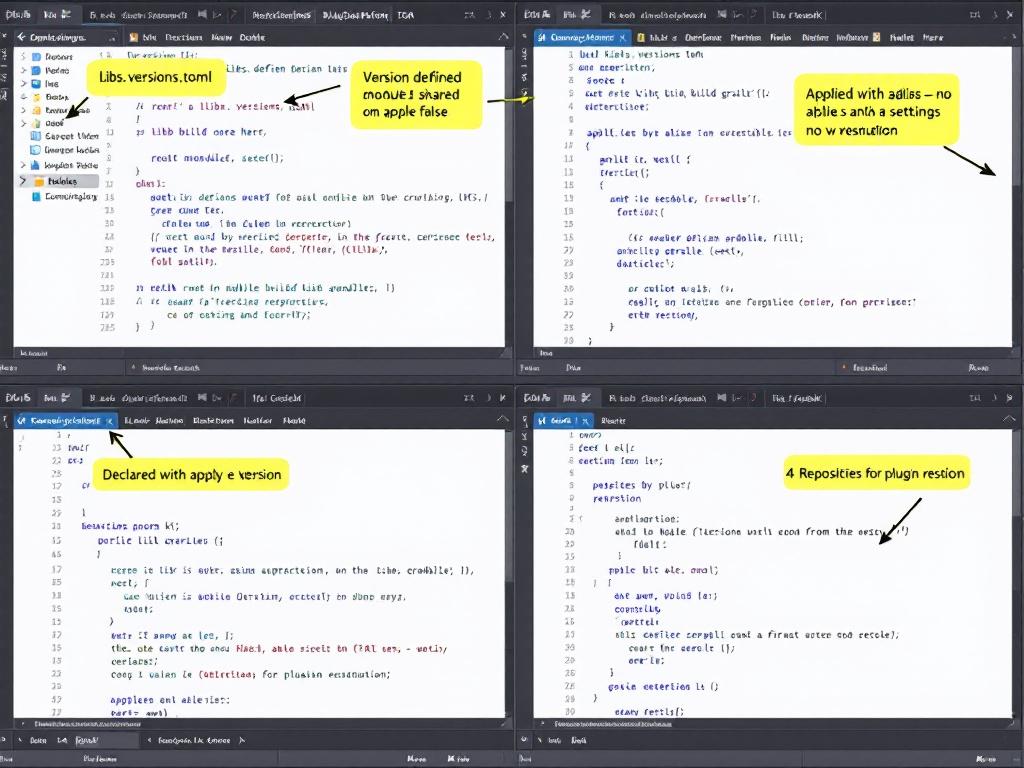
The payoff of this layout: a Kotlin version bump touches exactly one line — the kotlin = "..." entry in libs.versions.toml. Everything else updates automatically. No grep-replace across five files. No silent two-version drift.
Verifying Your KMP Plugin Setup Before You Write Application Code
The worst plugin bugs are the ones you discover three weeks into the project — when you can't tell whether the bug is in your application code or your build configuration. Run this checklist before writing application logic. Each step is a Gradle command or IDE check with a clear pass condition.
- Confirm plugins are declared in
plugins {}blocks, notapply plugin:. Open everybuild.gradle.ktsin the project. Search forapply plugin:(legacy syntax). Pass condition: zero results. Reason: ensures Gradle Plugin DSL semantics, version resolution frompluginManagement, and faster configuration — Source: Gradle Plugin DSL. - Run
./gradlew clean build --dry-run. The dry-run flag reports configuration errors without actually compiling. Pass condition: command completes with no errors, and the task list includes both:shared:compileKotlinAndroidand:shared:compileKotlinIosArm64(or whichever iOS targets you declared). If iOS tasks are missing, youriosArm64()/iosSimulatorArm64()declarations didn't register. This is also the right time to confirm that any automated publishing workflows you've set up can see the full task graph. - Verify source set recognition in the IDE. Open the project in Android Studio. Navigate to
shared/src/. Pass condition:commonMain,androidMain, andiosMainfolders display the blue Kotlin source-set icon — not generic gray folders. If gray: trigger a Gradle sync via Toolbar → Reload All Gradle Projects. Gray folders mean the IDE doesn't recognize them as source roots, so autocomplete and navigation won't work. - Test serialization plugin generation. Create a single
@Serializable data class Foo(val bar: String)incommonMain. Run./gradlew :shared:compileKotlinMetadata. Pass condition: noSerializer for class 'Foo' is not founderrors. If you see this error, the serialization plugin is declared but its version is mismatched with your Kotlin version. - Test Compose plugin compilation. Create a minimal
@Composable fun Greeting() { Text("Hello") }incommonMain. Run./gradlew :shared:compileKotlinMetadata. Pass condition: compiles without@Composable invocations can only happen from the context of a @Composable functionerrors. This error means the Compose plugin's compiler integration isn't active — usually a version mismatch. - Verify AGP and KMP coexist. Run
./gradlew :androidApp:assembleDebug. Pass condition: an APK is produced underandroidApp/build/outputs/apk/debug/. If the Gradle build succeeds but no APK appears, AGP isn't fully applied — typically because the Android module is missing itscom.android.applicationplugin declaration. - Verify iOS framework export (macOS only). Run
./gradlew :shared:linkDebugFrameworkIosSimulatorArm64. Pass condition: a framework appears undershared/build/bin/iosSimulatorArm64/debugFramework/shared.framework. If using CocoaPods integration, additionally run./gradlew :shared:podInstalland confirmshared/build/cocoapods/publish/release/shared.podspecexists.

Running all seven checks takes about 10 minutes on a configured machine. Skipping them and discovering a misconfiguration after you've written 800 lines of business logic takes considerably longer.
Plugin Questions That Trap Developers Mid-Setup
These are the kotlin multiplatform plugin questions that don't fit cleanly into a section above but consistently show up in KMP setup support threads.
Do I declare plugins in the shared module AND the app modules?
You declare them in the root build.gradle.kts with apply false, then re-apply (without version) in each module that actually uses them. The Android app module applies com.android.application and depends on the shared module; the shared module applies com.android.library plus kotlin-multiplatform. Never apply the same plugin twice in the same file — Source: Gradle Plugin DSL.
Can I mix Kotlin 2.0.x with Compose Multiplatform 1.5.x?
Almost certainly no. Check the Compose Multiplatform compatibility table before any Kotlin upgrade. Compose MP 1.5.x targets Kotlin 1.9.x. Mismatches produce IrLinkageError at build time or silent Composable generation failures at runtime. Treat Kotlin and Compose MP as a paired version bump, not as independent upgrades — the Kotlin compiler ABI changes break Compose's compiler plugin in ways that aren't always loud.
My IDE shows red squiggles but ./gradlew build succeeds — what's wrong?
The build is correct; the IDE's Gradle sync is stale. Fix: File → Sync Project with Gradle Files, or use Reload All Gradle Projects in the toolbar. If that fails, Invalidate Caches and Restart. This tooling-maturity gap is well-documented by Marco Gomiero, who notes: "Sometimes the tooling feels rough around the edges… you may need to clean and rebuild more often than with a pure Android project." — Source: marcogomiero.com.
Do I need the Kotlin Multiplatform Android Studio plugin if I already have Kotlin support?
Yes — they're different. The Kotlin plugin (bundled with Android Studio) handles language support. The Kotlin Multiplatform plugin (install via Settings → Plugins → Marketplace) adds the KMP project wizard, iOS environment preflight checks, run configurations for iOS, and basic Swift navigation — Source: Android Developers KMP. Skipping the multiplatform plugin means you can write KMP code, but you'll lack the iOS run targets and won't get warned about missing Xcode setup.
Should I version plugins in build.gradle.kts or libs.versions.toml?
Use libs.versions.toml (Version Catalog). Versions scattered across build.gradle.kts files become a maintenance liability the moment you bump Kotlin. Gradle has officially recommended Version Catalogs since Gradle 7. If you're starting today, start with a Version Catalog. If you're migrating an existing project, do it incrementally — Kotlin first, then plugins, then libraries. The migration is mechanical and pays back the first time you upgrade Kotlin without having to touch four files.