
How to Manage Docker Compose Secrets Securely in Your Mobile Backend

You ship a Kotlin Multiplatform app on Friday afternoon. The backend is a small Ktor service running in Docker Compose on a VPS, wired to Postgres, Firebase Admin, and Stripe. To get the release out, you commit .env "just this once" because the staging server keeps losing it on rebuilds. By Monday morning, GitHub's secret scanner has emailed you about a flagged Stripe key — but a crypto-mining bot scraped the public repo first, and your Stripe dashboard shows seventeen test charges from an IP in São Paulo. This is the exact failure pattern that docker compose secrets were designed to prevent, and it's the reason every backend you ship should treat credentials as files mounted at runtime — never as committed text, never as inspectable environment variables.
Table of Contents
- The .env File Problem That Ends Careers
- Four Approaches to Backend Secrets — Where Each One Breaks
- How Docker Compose Secrets Actually Work Under the Hood
- Local Dev, CI/CD, and Production — One Pattern, Three Wiring Strategies
- Wiring Postgres + Ktor with Docker Compose Secrets — Full Walkthrough
- Six Failure Modes Every Docker Compose Secrets Setup Eventually Hits
- Production Deploy Checklist — From
.secrets/to Live Traffic - Docker Compose Secrets FAQ
The .env File Problem That Ends Careers (And What You're Actually Risking)
The scenario above isn't hypothetical. It's the most common backend incident on hobby and small-team projects, and the failure modes compound in ways that surprise developers who've only thought about secrets as a "don't commit them" problem.
Git history persistence is the first trap. Running git rm .env removes the file from the next commit, not from history. Anyone who runs git log -p or pulls a past commit can read the secret. Force-pushing a rewritten history doesn't help either — every clone, every fork, and every cached CI checkout still has the original. According to GitHub's secret scanning documentation, the platform automatically scans public repositories for known credential patterns and notifies providers like Stripe, AWS, and Google Cloud when keys appear, but notification happens after the secret is public. The bot scraping your repo doesn't wait for the notification email.
docker inspect exposure is the second. When you pass secrets via the environment: block in docker-compose.yml, running docker inspect <container> prints them as plaintext under the Env array. Anyone with access to the Docker socket — which on many VPS setups is effectively anyone in the docker group, which is effectively root — reads every credential by piping the output through jq '.[0].Config.Env'. There is no permission check beyond socket access.
Process listing leaks are the third. Environment variables on Linux are stored in /proc/[pid]/environ. Any process running as the same user (or as root) can cat that file. Sidecar containers, monitoring agents, and even a poorly scoped ps auxe from an SSH session expose every credential the process was started with.
Container logs are the fourth, and arguably the worst. When a Ktor or Node app logs its connection string at startup — Connecting to postgres://kmpbackend:p@ssw0rd@db:5432/app — that password lives forever in docker logs, in your centralized logging system (Datadog, Loki, CloudWatch), and in any log artifact uploaded by CI. Log retention policies are designed for debuggability, not secrecy. A password logged once is a password leaked to every engineer with log access, every backup, and every third-party that touches the log pipeline.
Build artifact leaks are the fifth. If your Dockerfile contains COPY . . and your .dockerignore doesn't exclude .env, the secret is baked into a layer and shipped to your container registry. Anyone with pull access to that image has the keys, and you have no way to retroactively scrub a published layer.
This is not an amateur problem. In 2022, Toyota disclosed a data leak after an access key was exposed on GitHub for nearly five years, affecting roughly 296,000 customer records. The team that shipped that key was not unskilled — they made the same Friday-afternoon trade-off every backend developer makes, and the consequences compounded silently.
The reframe matters: secrets management isn't fundamentally about encryption. It's about never letting the secret enter a system that wasn't designed to hold it. Git wasn't designed for secrets. Environment variables weren't designed for secrets. Container logs weren't designed for secrets. Docker Compose's secrets: primitive, configured correctly, is.
Four Approaches to Backend Secrets — Where Each One Breaks
Before picking a tool, understand what you're optimizing for. Every approach trades convenience for exposure, and most real teams sit between the extremes.
| Approach | Security Level | Setup Complexity | Best Fit | Where It Breaks |
|---|---|---|---|---|
Plaintext .env + environment: block |
Low | Trivial | Throwaway prototypes only | Visible in docker inspect, process listings, logs |
.env referenced via env_file: |
Low | Trivial | Local dev with strict .gitignore |
Same runtime exposure; only hides values in compose.yml |
Docker Compose secrets: (file-based) |
High | Low–Medium | Local dev + single-host production | No native rotation; full RBAC needs Swarm |
| External secret manager (Vault, Doppler) | Very High | High | Multi-environment teams at scale | Operational overhead; auth bootstrapping |
Plaintext env vars feel convenient because they require zero code changes — your app already reads System.getenv("DB_PASSWORD"). That convenience is the trap. Every layer of your stack treats env vars as inspectable runtime metadata, not as secrets. Docker's own documentation explicitly warns against using environment variables for sensitive data, and the warning isn't theoretical — every exposure path described in the previous section applies the moment a credential lands in environment:.
The env_file: approach is a cosmetic improvement. Your compose file looks cleaner because the values aren't inline, but the runtime exposure is identical — Docker still injects them into the container's environment. You've made the YAML prettier and changed nothing about security.
Docker Compose's secrets: block is the inflection point. Secrets become files mounted at /run/secrets/[name] with tmpfs-backed storage on Linux (RAM-only, never written to disk), unreadable to docker inspect's env output, and excluded from the env arrays that logging agents typically scrape. This is what you want for roughly 90% of indie and small-team backends — the setup cost is low, and the security gain is structural rather than incremental.
External secret managers (HashiCorp Vault, AWS Secrets Manager, Doppler) are correct for teams running multiple production environments, requiring rotation SLAs, or facing compliance audits. For a solo founder validating an MVP, the operational cost — Vault clustering, IAM policies, sidecar injectors, network dependency at boot — exceeds the threat model. The right escalation path is: file-based secrets locally and in early production, then layer in a managed service once you have paying users.
If you're a solo dev shipping your first KMP backend, start with Docker Compose secrets: and CI-injected files in production. For teams running production workloads at the Scale tier, layer Doppler or AWS Secrets Manager on top of the same mount pattern — the app code doesn't change, only the upstream source does.
How Docker Compose Secrets Actually Work Under the Hood
Most "use docker compose secrets" guides hand you a YAML snippet without explaining the runtime mechanics, which is why the same six bugs keep appearing in Stack Overflow threads. Here's what's actually happening between the file on disk and the credential your Ktor app reads.
1. The top-level secrets: block declares what exists.
secrets:
  db_password:
    file: ./.secrets/db_password.txt
  firebase_service_account:
    file: ./.secrets/firebase-admin.json
The file: form reads from the local filesystem at compose time. The alternative, external: true, references a pre-existing Swarm secret created via docker secret create. Local dev and most single-host production setups use file:. Multi-node Swarm clusters use external:.
2. Per-service secrets: mounts the secret into a specific container.
services:
  api:
    image: my-ktor-backend
    secrets:
      - db_password
      - firebase_service_account
Without this per-service block, the secret exists in the compose file but is never available inside the container. This is the single most common cause of "but I defined it!" debugging sessions — the top-level declaration alone does nothing.
3. Secrets land at /run/secrets/[name] as read-only files.
Inside the running container:
$ ls -la /run/secrets/
-r-------- 1 root root 24 Jan 15 10:32 db_password
-r-------- 1 root root 2341 Jan 15 10:32 firebase_service_account
Permissions are 0400 by default — owner read-only. The mount is tmpfs on Linux, which means the file content lives in RAM and is never written to disk. This is structurally different from environment variables: your app reads a file, not getenv(). That distinction is what closes the inspection and process-listing exposure paths.
4. Your app reads the file, not an env var.
fun loadDbPassword(): String {
    val secretFile = File("/run/secrets/db_password")
    require(secretFile.exists()) { "DB password secret not mounted" }
    return secretFile.readText().trim()
}
The .trim() call is non-optional. Trailing newlines in secret files cause authentication failures that look like "wrong password" but are actually "wrong password\n" — and the debugging session that follows is uniquely demoralizing because the file looks correct in every editor you open.
Docker Compose secrets are not environment variables. They are files mounted at runtime with restricted permissions, and that distinction is the entire point.
5. docker compose up supports secrets: since v1.27.
Older guides repeat the claim that secrets require Swarm. That hasn't been true since Docker Compose v1.27, released July 2020. File-based secrets work with plain docker compose up on a single host. The Swarm-only features today are external: secrets and full RBAC — neither of which a small backend needs at the start.
6. Verify the mount worked.
Three commands you should run after every compose file change involving secrets:
docker compose exec api ls -la /run/secrets/
docker compose exec api cat /run/secrets/db_password
docker inspect $(docker compose ps -q api) | grep -A2 '"Env"'
The last command must NOT show your secret value. If it does, you're still passing the credential as an environment variable somewhere — usually a leftover line in environment: that you forgot to delete during the migration.

Local Dev, CI/CD, and Production — One Pattern, Three Wiring Strategies
The architectural principle that makes this whole approach work: your app code stays identical across environments. It always reads from /run/secrets/[name]. Only the source of the file changes as you move from a developer laptop to a CI runner to a production host.
| Environment | Secret Source | How the File Gets There | Rotation Approach |
|---|---|---|---|
| Local dev | Plaintext file in .secrets/ (gitignored) |
file: reference in docker-compose.yml |
Manual edit, restart compose |
| CI/CD (GitHub Actions) | GitHub Actions secret | Workflow step writes to temp file | Update GH secret, re-run pipeline |
| Staging (single-host VPS) | Encrypted file via SCP / Ansible Vault | Present on host at deploy time | Re-deploy with new file |
| Production (Swarm) | docker secret create from external source |
external: true in compose |
docker service update --secret-rm/--secret-add |
| Production (Kubernetes) | K8s Secret, optionally synced from Vault | Mounted via volume; CSI driver for external mgr | Vault rotation triggers K8s sync |
Environment parity isn't a nice-to-have. The moment your local code path differs from production, you've built a bug that will only show up under real traffic.
The parity principle, expanded. The worst secret bugs are the ones where local dev "works" and production silently fails because the code path diverged. If your Kotlin code reads /run/secrets/db_password locally, it must read the same path in production. If you sprinkle if (env == "prod") readFromVault() else readFromFile() into your config layer, you've doubled your surface area for credential bugs and lost the ability to reproduce production behavior locally.
Local dev setup. Create a .secrets/ directory in your repo root. Add .secrets/ to .gitignore before creating any files in it — otherwise the first commit can still catch a file that's already in the staging area. Document the expected file list in a .secrets/README.md so teammates know which files to create:
.secrets/
├── README.md           (tracked in git)
├── db_password.txt     (gitignored)
├── firebase-admin.json (gitignored)
├── jwt_signing_key.txt (gitignored)
└── stripe_api_key.txt  (gitignored)
CI/CD wiring. A real GitHub Actions snippet:
- name: Inject secrets
  run: |
    mkdir -p .secrets
    echo "${{ secrets.DB_PASSWORD }}" > .secrets/db_password.txt
    echo "${{ secrets.STRIPE_KEY }}" > .secrets/stripe_api_key.txt
- name: Deploy
  run: docker compose -f docker-compose.prod.yml up -d
The critical detail: the GitHub Actions runner is ephemeral. The .secrets/ files exist only for the duration of the job, on a VM that's destroyed afterward. They never touch a persistent disk you don't control. GitHub's secrets documentation covers the encryption-at-rest and access-scoping guarantees in detail.
Production escalation. For teams running production traffic with PCI, HIPAA, or SOC2 requirements, file-based secrets alone aren't enough — you need rotation, audit logs, and access policies. Doppler offers a free tier for small teams, and AWS Secrets Manager charges $0.40 per secret per month plus API call costs. Both integrate with Docker via sidecar or init containers that fetch the credential at boot and write it to a shared tmpfs volume — preserving the /run/secrets/[name] contract your app already depends on.
Teams shipping custom backends alongside their KMP apps typically start at the file-based-local + CI-injected-production tier, then graduate to a managed secrets service once they have paying users, compliance obligations, or more than one production environment to keep in sync. The CI/CD workflows shipped with most production-ready KMP setups already follow this materialize-then-mount pattern.

Wiring Postgres + Ktor with Docker Compose Secrets — Full Walkthrough
This is the section you'll bookmark. Every step ships copy-paste code that runs against a current Docker Compose v2 install.
Step 1 — Project structure
my-kmp-backend/
├── .gitignore
├── docker-compose.yml
├── docker-compose.prod.yml
├── .secrets/
│   ├── README.md
│   ├── db_password.txt
│   └── firebase-admin.json
└── src/
    └── main/kotlin/
        ├── Application.kt
        └── config/
            └── Secrets.kt
Your .gitignore must contain:
.secrets/
!.secrets/README.md
The ! exception keeps the README tracked so teammates know what files to create. Without the negation, the README disappears too, and your onboarding doc vanishes.
Step 2 — Create your local secret files
mkdir -p .secrets
openssl rand -base64 32 > .secrets/db_password.txt
# Paste your Firebase service account JSON into .secrets/firebase-admin.json
Use openssl rand rather than picking a memorable password. Local dev is not the place to practice weak credentials — developer machines get compromised, get backed up to cloud storage, and get cloned by ex-employees. Generate strength, then forget the value exists.
Step 3 — Configure docker-compose.yml
services:
  postgres:
    image: postgres:16-alpine
    environment:
      POSTGRES_USER: kmpbackend
      POSTGRES_PASSWORD_FILE: /run/secrets/db_password
      POSTGRES_DB: app
    secrets:
      - db_password
    volumes:
      - pgdata:/var/lib/postgresql/data

  api:
    build: .
    depends_on:
      - postgres
    environment:
      DB_HOST: postgres
      DB_USER: kmpbackend
      DB_NAME: app
    secrets:
      - db_password
      - firebase_service_account
    ports:
      - "8080:8080"

secrets:
  db_password:
    file: ./.secrets/db_password.txt
  firebase_service_account:
    file: ./.secrets/firebase-admin.json

volumes:
  pgdata:
Call out the Postgres image's _FILE convention: the official Postgres image's entrypoint reads POSTGRES_PASSWORD_FILE, opens the file at that path, and uses its contents as the password. MySQL, MariaDB, and several other official images on Docker Hub support the same pattern. You get secret-file support with zero custom wrapper scripts.
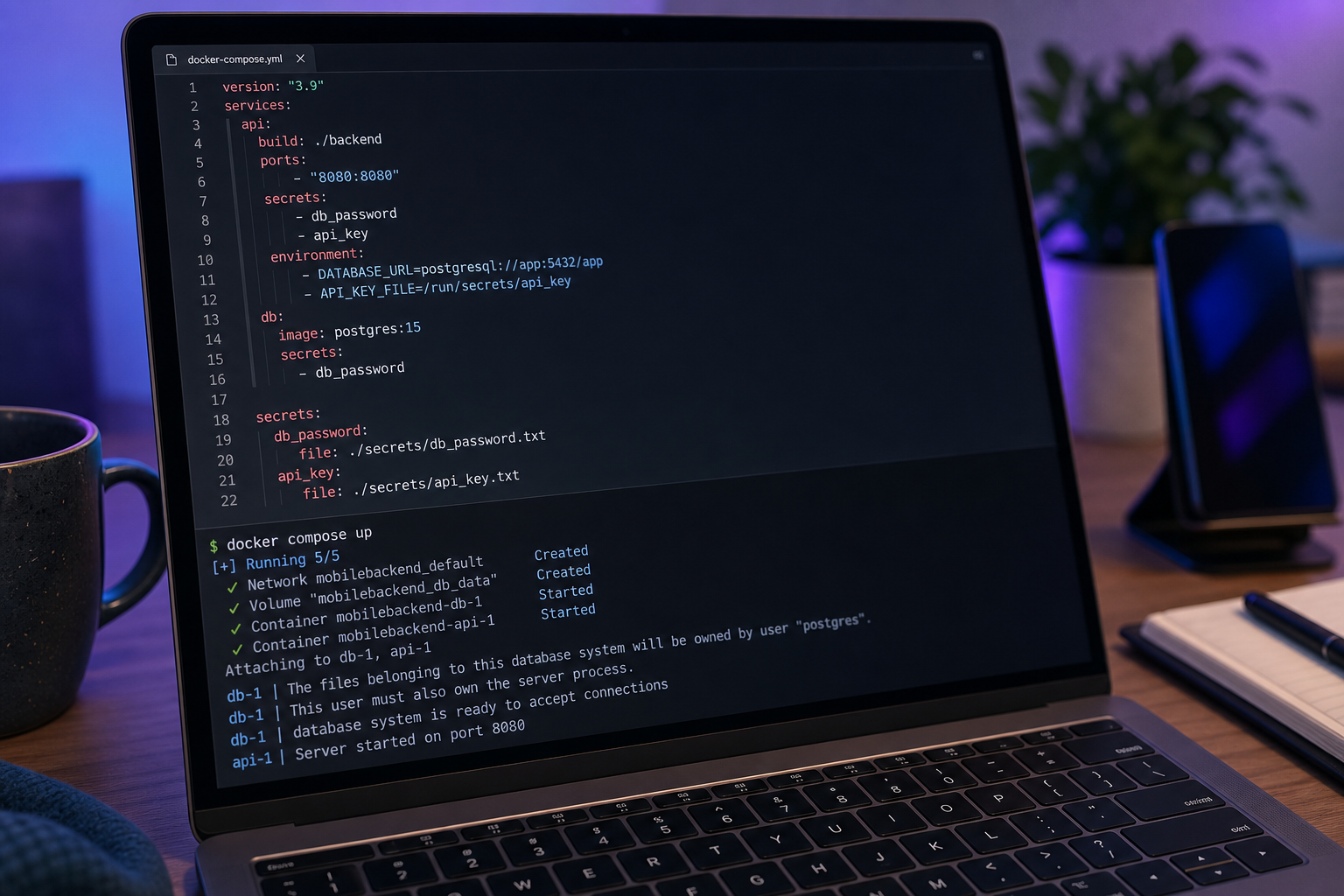
Step 4 — Read the secret in Ktor
// src/main/kotlin/config/Secrets.kt
package config

import java.io.File

object Secrets {
    fun read(name: String): String {
        val path = "/run/secrets/$name"
        val file = File(path)
        require(file.exists()) { "Secret '$name' not mounted at $path" }
        require(file.canRead()) { "Secret '$name' exists but is not readable" }
        return file.readText().trim()
    }
}
// src/main/kotlin/Application.kt
fun Application.configureDatabase() {
    val dbPassword = Secrets.read("db_password")
    val dbUrl = "jdbc:postgresql://${System.getenv("DB_HOST")}:5432/${System.getenv("DB_NAME")}"
    Database.connect(
        url = dbUrl,
        user = System.getenv("DB_USER"),
        password = dbPassword,
        driver = "org.postgresql.Driver"
    )
}
Note the separation. Non-secret config — host, db name, user — stays in env vars where it's convenient and inspectable. Only the password lives in /run/secrets/. Don't blur the line: env vars are for things you'd happily put in a log, secrets are for things you wouldn't. If your Ktor service also persists state on-device for any offline-capable client flows, the same file-mount discipline applies to whichever credential gates your local database sync endpoints.
Step 5 — Load the Firebase service account
fun initFirebase() {
    val credentialsStream = File("/run/secrets/firebase_service_account").inputStream()
    val options = FirebaseOptions.builder()
        .setCredentials(GoogleCredentials.fromStream(credentialsStream))
        .build()
    FirebaseApp.initializeApp(options)
}
The Firebase Admin SDK accepts an InputStream directly — no need to copy the JSON to a temp location or parse it yourself. If you're wiring this into a mobile app that already uses production-ready authentication setup on the client side, the server-side admin credentials follow the same mount pattern as every other secret in your stack.
Step 6 — Run and verify locally
docker compose up -d

docker compose exec api ls -la /run/secrets/
# Expect: db_password and firebase_service_account, both 0400

docker compose exec api curl http://localhost:8080/health
# Expect: 200 OK if DB connected

docker inspect $(docker compose ps -q api) | jq '.[0].Config.Env'
# Expect: NO password value in the array
If the last command shows the password, you have a leftover environment: line referencing the secret. Remove it. The file is the source of truth.
Step 7 — Production deploy via GitHub Actions
Wire up automated CI/CD workflows that materialize secrets at deploy time, then push the compose file to your host. Create .github/workflows/deploy.yml:
name: Deploy
on:
  push:
    branches: [main]
jobs:
  deploy:
    runs-on: ubuntu-latest
    steps:
      - uses: actions/checkout@v4
      - name: Materialize secrets
        run: |
          mkdir -p .secrets
          printf '%s' '${{ secrets.DB_PASSWORD }}' > .secrets/db_password.txt
          cat > .secrets/firebase-admin.json <<'EOF'
          ${{ secrets.FIREBASE_ADMIN_JSON }}
          EOF
      - name: Deploy via SSH
        run: |
          rsync -avz --include='.secrets/***' --exclude-from='.gitignore' \
            ./ user@server:/opt/backend/
          ssh user@server "cd /opt/backend && docker compose up -d"
Two intentional details. First, printf '%s' instead of echo avoids appending a trailing newline that breaks Postgres auth. Second, --include='.secrets/***' overrides the rsync default of honoring .gitignore — without this, rsync would skip the directory and your production deploy would silently arrive with no secrets mounted.
Six Failure Modes Every Docker Compose Secrets Setup Eventually Hits
You'll hit at least three of these in the first month. The faster you recognize the signature, the less time you waste suspecting your network, your driver, your Kubernetes admission controllers, or your own sanity.
"Permission denied" reading /run/secrets/[name]
Symptom: java.io.FileNotFoundException or Permission denied in app logs the moment your service starts.
Root cause: The default mount is 0400 — root-only. Your app container runs as a non-root user, which is what you want for security, but it means the default permissions lock your app out of its own secrets.
Fix: Add uid:, gid:, and mode: to the per-service secret reference. Docker's compose file reference documents the full syntax:
secrets:
  - source: db_password
    target: db_password
    uid: "1000"
    gid: "1000"
    mode: 0400
Trailing newline breaks authentication
Symptom: Postgres returns "password authentication failed" but you've quintuple-checked the password is correct.
Root cause: echo "password" > file appends \n. Postgres compares password\n to password and rejects the login. The file looks identical to a correct one in any editor.
Fix: Use printf '%s' instead of echo, and always .trim() in app code. Verify with xxd .secrets/db_password.txt | tail -1 — the last byte should not be 0a.
Secret defined but not mounted into the service
Symptom: /run/secrets/ is empty or missing files you know you defined.
Root cause: You added the top-level secrets: block but forgot the per-service secrets: list. The top-level declaration registers the secret with Compose; the service-level list actually mounts it.
Fix: Every service that needs a secret must list it under its own secrets: key. No exceptions, no shortcuts.
Secret value appears in docker inspect Env array
Symptom: docker inspect <container> | jq '.[0].Config.Env' shows the password as a plaintext environment variable.
Root cause: You're using secrets: and environment: for the same value. The mount works, but you also passed the credential the old way and forgot to delete the line.
Fix: Remove the env var entirely. If your app reads the secret from the file, the env var is dead weight that re-opens every exposure path you just closed.
CI pipeline succeeds locally but the secret file is empty in production
Symptom: App throws "Secret not readable" or "Empty credential" on the first production request after deploy.
Root cause: The GitHub Actions secret contains multi-line content (a JSON service account, a PEM key), and the workflow used echo without quoting. The shell stripped or collapsed newlines, leaving a malformed file.
Fix: Always use single-quoted heredoc for multi-line secrets:
run: |
  cat > .secrets/firebase-admin.json <<'EOF'
  ${{ secrets.FIREBASE_ADMIN_JSON }}
  EOF
The quoted 'EOF' prevents shell expansion inside the heredoc, preserving every character exactly as stored.
Secret value leaked to centralized logs
Symptom: A Datadog or Loki search across your log indexes returns hits for the password string.
Root cause: At startup, your app logs the full DB connection URL including the password, or an exception stack trace includes the credential as a constructor argument or method parameter. The same risk applies to any HTTP client and API integration layer that logs full request URIs with embedded auth tokens.
Fix: Build a redaction layer in your logger. Never construct log strings by interpolating secret variables. Use structured logging and explicitly exclude credential fields from serialization. For exceptions, wrap database calls so the catch block logs a sanitized error rather than the raw driver exception.
The most expensive secret breach isn't a hacked vault. It's a developer who logged the credentials while debugging on a Tuesday afternoon.
Verification checklist
Run through this list every time you change anything in the secrets pipeline:
.secrets/exists in.gitignoreandgit statusdoes NOT show secret files as untracked- Every secret used by a service is listed under that service's
secrets:block - App reads from
/run/secrets/[name], never fromSystem.getenv()for credential values docker compose exec [service] ls -la /run/secrets/shows expected files with expected permissionsdocker inspect [container] | jq '.[].Config.Env'shows no credential valuesxxd .secrets/[file] | tailshows no trailing newline corruption- App startup logs and exception traces are scrubbed of credential values
- CI/CD secret materialization step uses heredoc or quoted expansion for multi-line content
Production Deploy Checklist — From .secrets/ to Live Traffic

Each item below is something you do, not something you learn. Walk through it in order before any production push that touches credentials.
- Create
.secrets/and add it to.gitignorebefore creating any files inside it. Order matters. Adding to.gitignoreafter agit addwon't untrack an already-staged file, and you'll discover that fact at the worst possible moment. - Generate a strong dev password with
openssl rand -base64 32 > .secrets/db_password.txt. Local credentials should not be guessable just because they're local. Developer machines get backed up, cloned, and stolen — treat them like junior production hosts. - Define every secret in your top-level
secrets:block with explicitfile:references. Avoid theexternal:form locally — it requires Swarm and slows down developer onboarding by forcing every new teammate todocker secret createbefore their firstdocker compose up. - List each secret under the specific services that need it — no global mounting. Least-privilege at the container level prevents secret sprawl. Your worker service does not need your Stripe key.
- Use the
_FILEenv var convention for official images. Postgres, MySQL, MariaDB, and several others readPOSTGRES_PASSWORD_FILE,MYSQL_ROOT_PASSWORD_FILE, and similar variables, loading the credential from the mounted file. No custom entrypoint wrappers, no init scripts. - Read secrets in app code via filesystem reads, never
System.getenv(). Centralize this in aSecrets.read()helper so every credential follows the same code path, the same error handling, and the same trim semantics. - Add a
.secrets/README.md(tracked in git) listing required files and how to obtain them. A new teammate should be able to rundocker compose upafter following exactly one document. Anything more is a hiring tax. - In CI, materialize secrets via heredoc-quoted blocks immediately before
docker compose up. Avoidechofor any multi-line content. JSON service accounts, PEM keys, and certificate chains all break under unquoted expansion in ways that won't fail loudly until production. - Verify post-deploy:
docker inspectmust not contain credential values in theEnvarray. Run this as the final step of every deploy pipeline. Grep for known credential prefixes (sk_live_,xoxb-,AKIA) and fail the build if any appear in the inspected output. - Plan rotation strategy before you have customers — even if it's just "regenerate quarterly + redeploy". A rotation runbook written under incident pressure is a rotation runbook with mistakes. The cheapest version is a calendar reminder and a documented sequence; the expensive version is paying a consultant to do it for you at 2 a.m.
If your project is past MVP and you need rotation, audit logs, or multi-environment fan-out, layer Doppler or AWS Secrets Manager on top of the same /run/secrets/ mount pattern. The app code stays identical; only the upstream source changes. This is the upgrade path most MVP and Scale tier projects follow once their first paying customers create the compliance gravity to justify the operational overhead.
Docker Compose Secrets FAQ
Q1: Do I need Docker Swarm to use secrets: in docker-compose.yml?
No. As of Docker Compose v1.27, released July 2020, file-based secrets work with plain docker compose up. You only need Swarm if you want external: true secrets (managed via docker secret create) or full RBAC on secret access. For local dev and single-host production, file: references are sufficient. The Docker Compose secrets guide covers the compatibility matrix in detail.
Q2: Can I commit encrypted secrets to git using something like git-crypt or SOPS?
You can, but the operational cost rarely beats keeping plaintext secrets out of git entirely. Encrypted-in-git approaches create a false sense of safety: the decryption key still lives on developer machines, key rotation requires re-encrypting everything and committing the result, and the encrypted blobs still produce noisy diffs that make code review harder. For most indie and small teams, the cleaner pattern is plaintext locally in .secrets/ (gitignored), CI-injected in production, and a managed secrets service once compliance demands it. Reserve SOPS-style workflows for teams that genuinely need GitOps-driven secret distribution across many clusters.
Q3: How do I rotate a Docker Compose secret without downtime?
Plain docker compose with file-based secrets doesn't support live rotation. You update the file and restart the service, which means a brief downtime window — typically a few seconds for a Ktor service on a single host. Docker Swarm secrets are immutable: you create a new secret (e.g., db_password_v2), update the service to reference it, and the old secret can be removed once no service depends on it. True zero-downtime rotation requires an external secret manager with a sidecar or init container that re-reads on a schedule, paired with app code that handles credential refresh without restart — for example, a connection pool that lazily re-authenticates on its next connection. For MVP-stage projects, a brief scheduled redeploy is acceptable. Graduate to vault-based rotation when you have paying customers and an uptime SLA that makes seconds of downtime expensive.